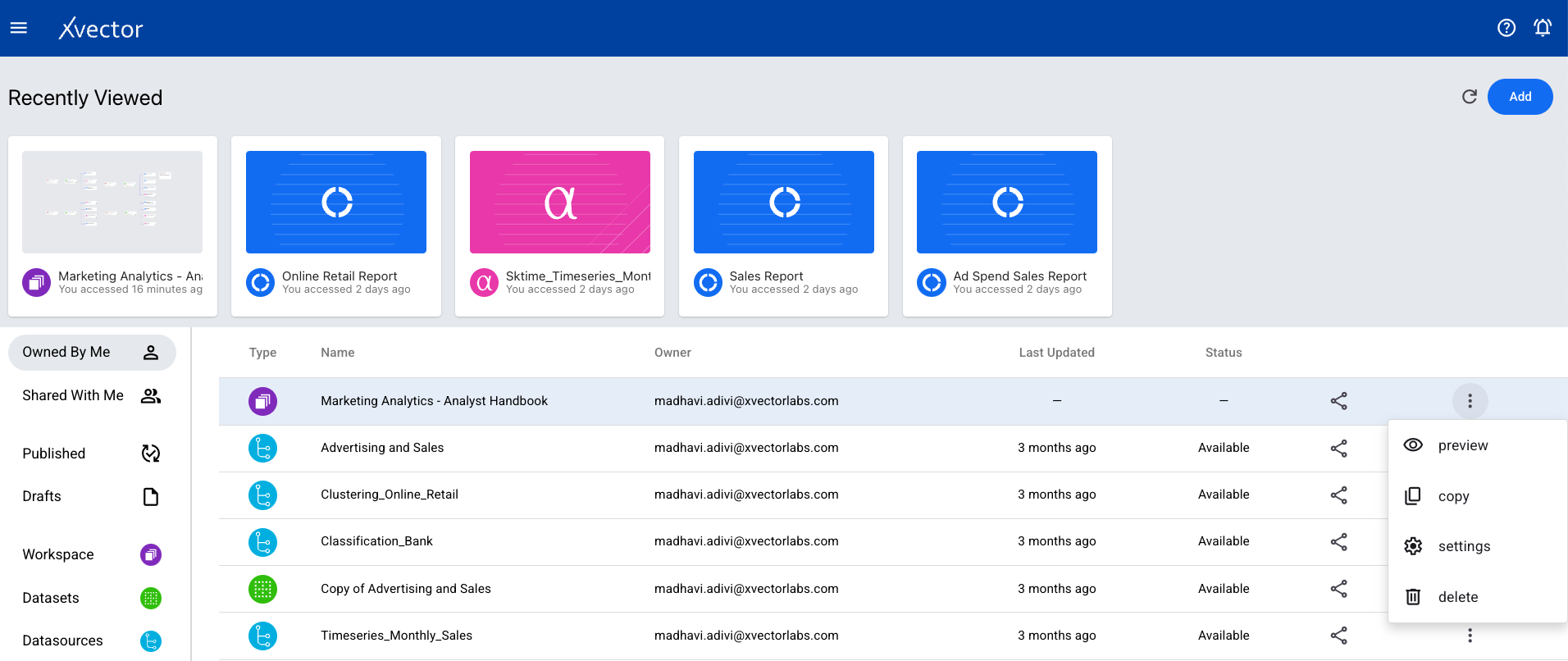
Workspace
A workspace provides a convenient way to visualize and organize interactions across resources such as data sources, datasets, reports, and models that power a DataApp. Business analysts, data scientists, and data engineers have a single pane of glass for collaboration and version control.
Creating a Workspace
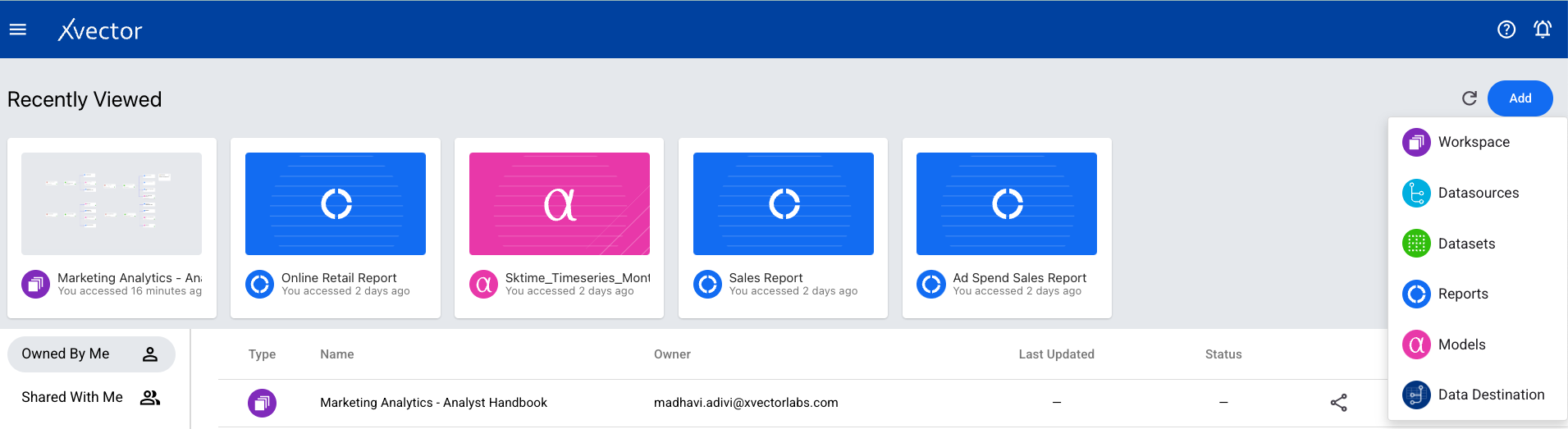
Section titled “Creating a Workspace”- From the homepage, click on Add and choose Workspace.
- Provide details: a Name for the workspace and a Description.
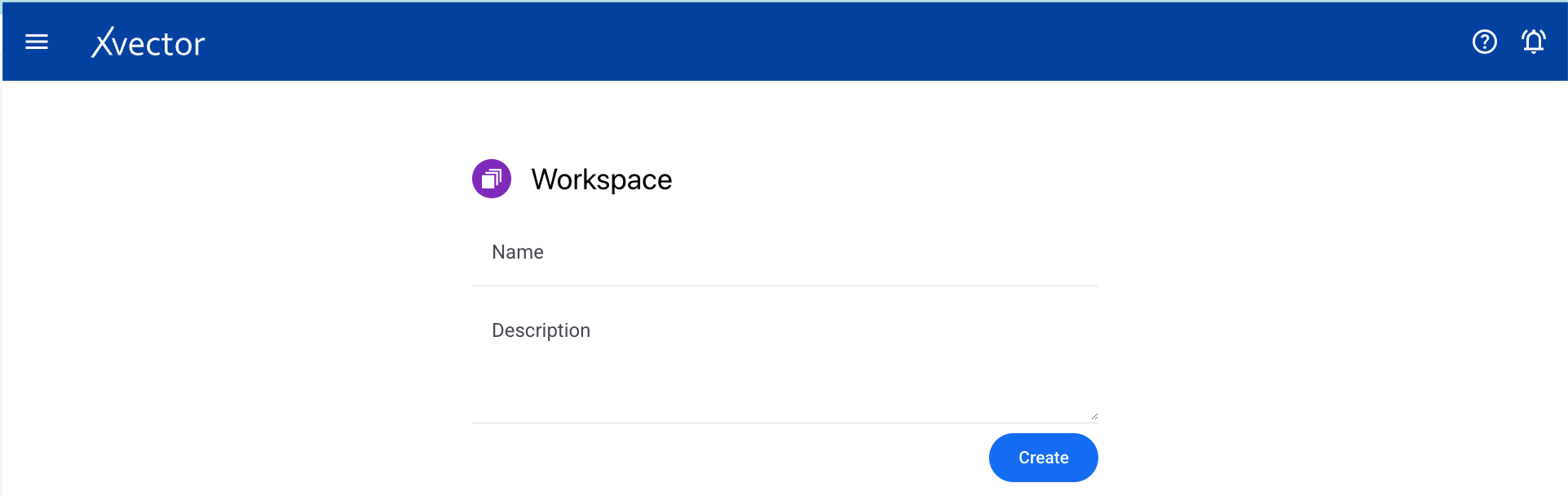
- Click on Create.
Workspace Options
Section titled “Workspace Options”Once in the Workspace, xVector provides a list of options on the top right of the screen.

Each of the icons is described below:
- Presence — Shows users that are currently in the workspace.
- Draft Server — Option to start and stop the draft server. This is used to prototype rapidly by collaborating with business users.
- Data Dictionary — Helps understand the metadata of the datasets.
- View as List/Flow — Option to switch between list and flow type view of workspace resources.
- Auto Layout — Automatically arranges all the resources in the workspace.
- Grid Lines — Displays vertical and horizontal lines for arranging resource cards/nodes manually.
- Hide Comments — To hide the comments on the workspace.
- Add Comments — Option to add new comments.
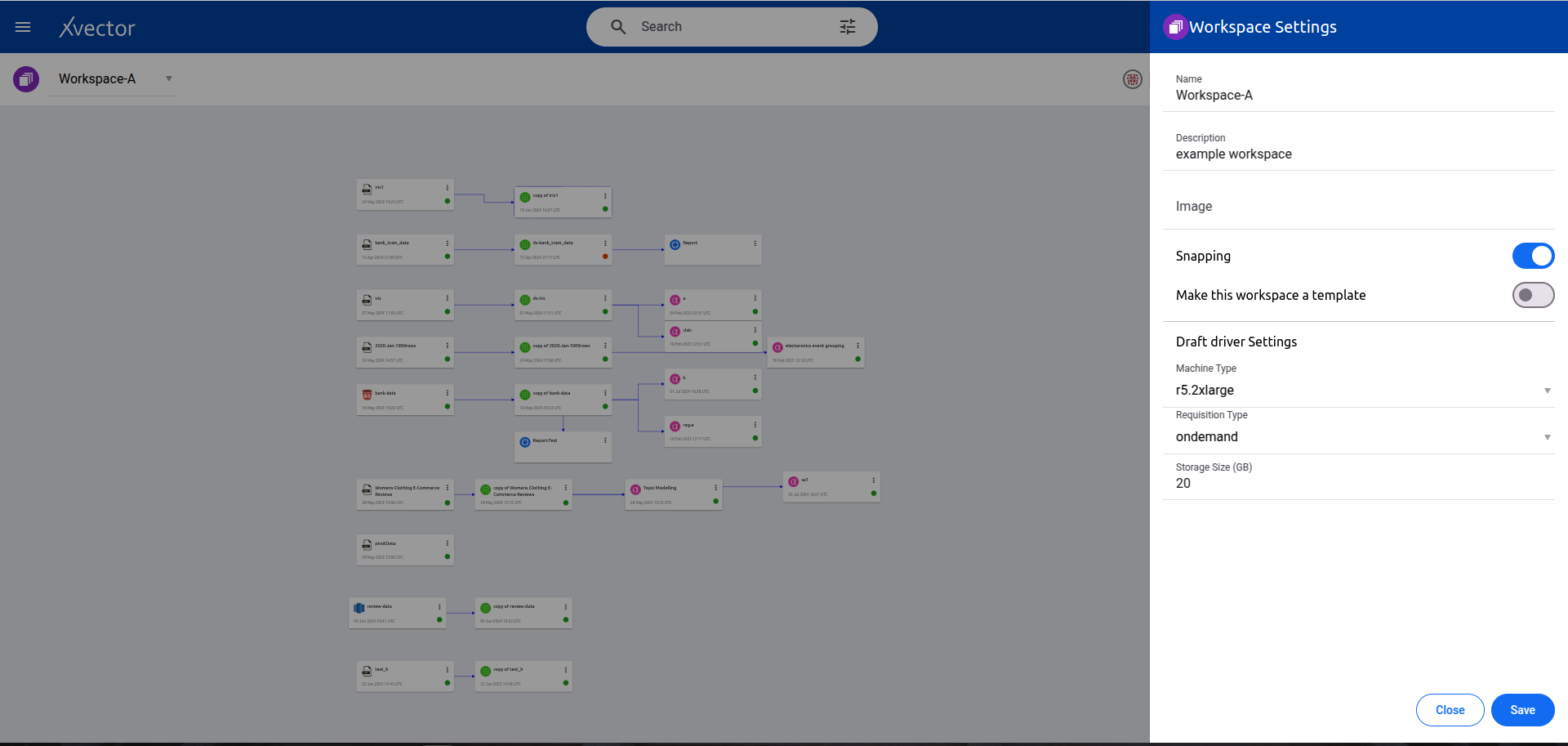
- Settings — Modify workspace details including:
- Name and Description of the workspace
- Image — takes an image URL which will be displayed in the workspace card
- Snapping — for arranging the resource cards in the workspace
- Making the workspace a template
- Draft driver settings — select the machine specifications of the draft driver
- Share — To share the workspace with other users or user groups.
- Add — Option to add different resources.
Deleting a Workspace
Section titled “Deleting a Workspace”- Go back to the home page by clicking on “xVector” on the top left of the screen.
- Identify the workspace that needs to be deleted and click on the ellipses for that workspace.
- Click on Delete in the menu options.