Data Destination
Data Destination allows users to write data from a workspace to a target destination like S3 or MinIO. This enables acting on insights by automating the output to execution systems — for example, sending churn-likely customers to a CRM system.
An S3 type data destination is used when you need to write data to an S3 bucket.
Creating an S3 Data Destination
Section titled “Creating an S3 Data Destination”From a workspace, click on Add and choose the Data Destination option.
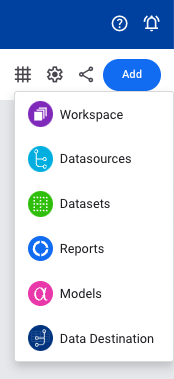
Choose the S3 data destination type from the available list, then go through the following steps:
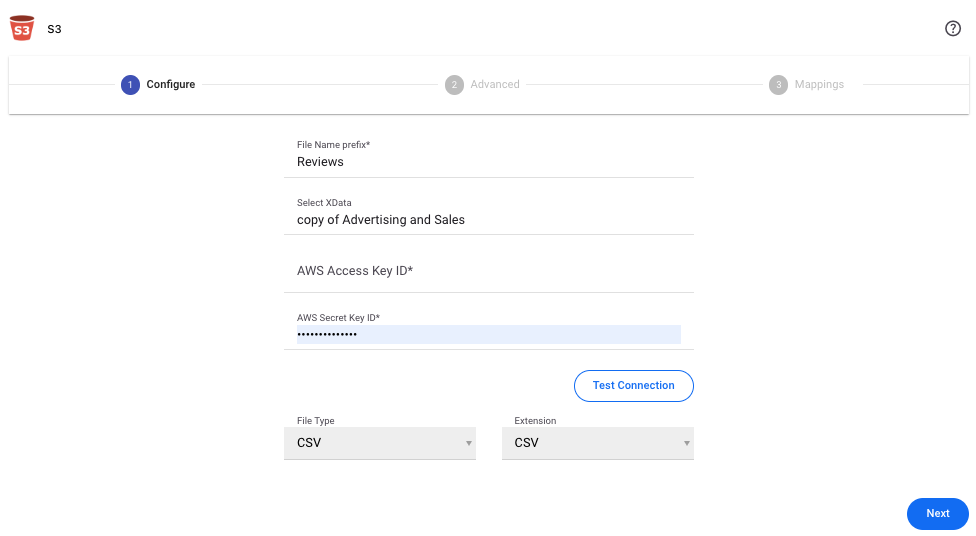
Configure
Section titled “Configure”| Field | Description |
|---|---|
| File name prefix | Provide a prefix for the file name to be written on S3 |
| Select data | Select the dataset to write |
| AWS access key ID | Provide the AWS access key ID |
| AWS secret key | Enter the AWS secret key |
| File type | Choose file type (CSV, JSON) |
| Test Connection | Click to test connection with the provided credentials |
| Extension | Choose file extension (CSV, JSON, GZIP) |
Advanced
Section titled “Advanced”| Field | Description |
|---|---|
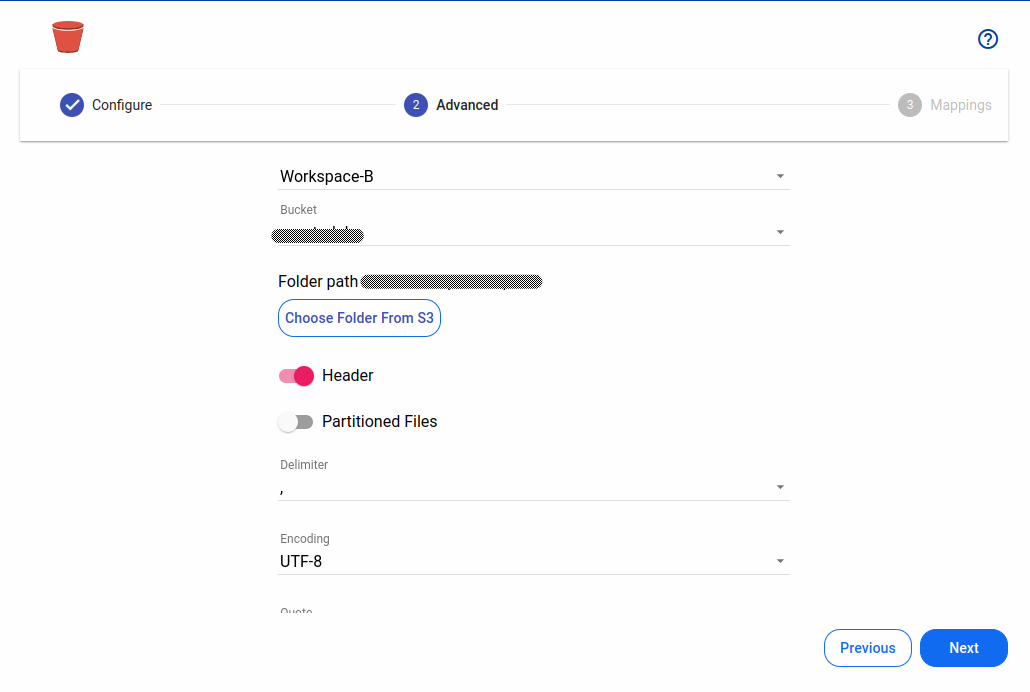
| Workspace | Choose from available options |
| Bucket | Select the target S3 bucket |
| Prefix for files | Provide prefix for files |
| Choose folder | Choose folder in S3 bucket |
| Header | Set to true if header is present, otherwise false |
| Partitioned files | Enable for partitioning the files |
| Delimiter | Choose delimiter according to the file |
| Encoding | Select encoding |
| Quote | Single character for escaping quoted values where the separator can be part of the value |
| Escape | Single character for escaping quotes inside an already quoted value |
| Comment | Single character for skipping lines beginning with this character (disabled by default) |
| Null value | String representation of a null value |
| NaN value | String representation of a non-number value |
| Positive Inf | String representation of a positive infinity value |
| Negative Inf | String representation of a negative infinity value |
| Multiline | Parse one record, which may span multiple lines, per file |
| Quote Escape Character | Single character for escaping the escape for the quote character |
| Empty Value | String representation of an empty value |
| Expression | Write expressions to be executed while reading the data |
| Default machine specifications | Set to false if specific machine configuration for the write-back process is required |
Mappings
Section titled “Mappings”Select the columns from the source and provide corresponding names and data types for columns to be written at the target system (the S3 bucket).
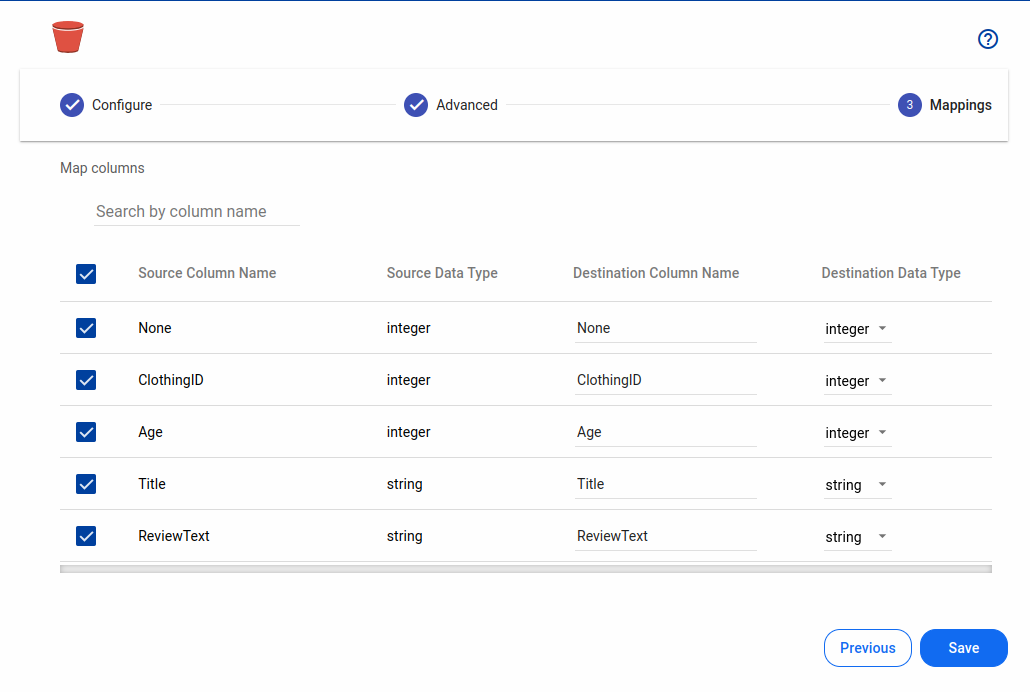
This will start the write-back process. You can track the progress on the job screen displayed. After completion, the data destination object will appear in the selected workspace.